

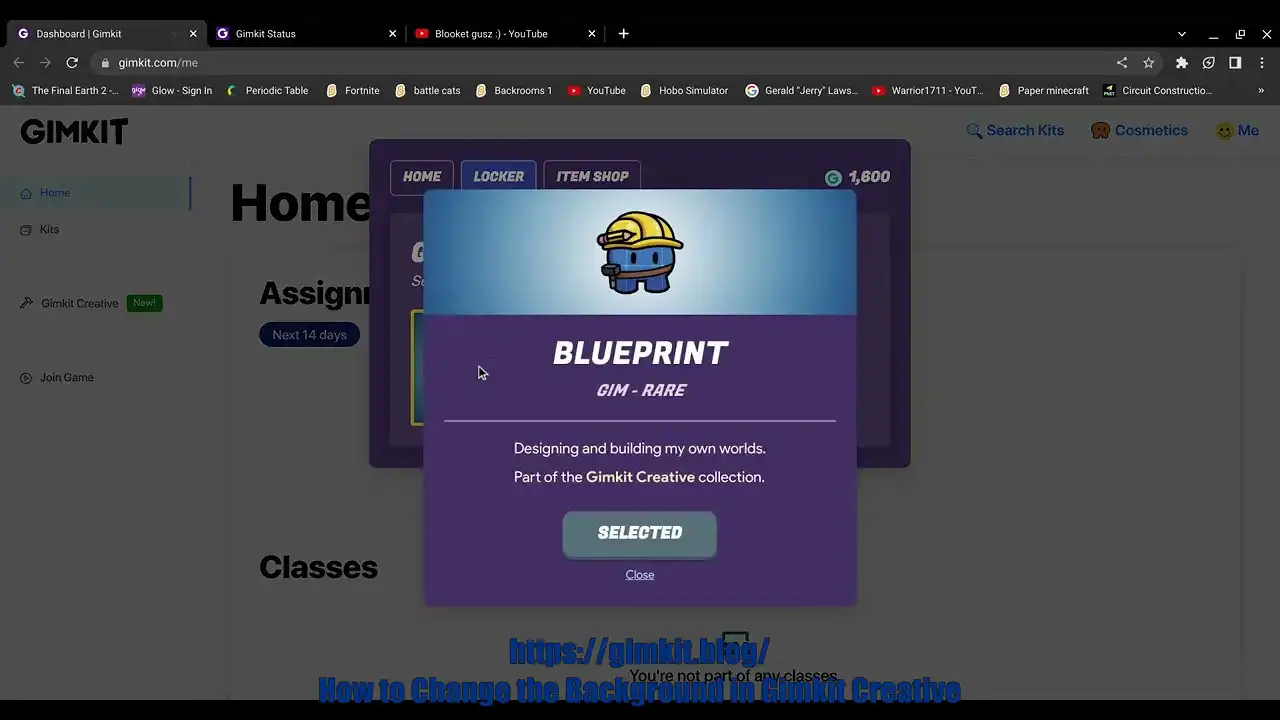
Are you looking to make your Gimkit Creative game more engaging by changing the background? Customizing your game’s look and feel can make it more fun and personal for students. In this guide, we’ll walk you through how to change the background in Gimkit Creative in a few simple steps. Whether you’re a teacher or a student, this guide will help you customize your game to make it visually appealing and fun.
What is Gimkit Creative?
Before diving into the steps, let’s quickly discuss what Gimkit Creative is. Gimkit Creative is a platform where teachers and students can create custom quizzes and games. Unlike traditional quiz formats, Gimkit offers a more interactive experience by allowing users to design their own questions and customize their game’s appearance. One of the coolest features of Gimkit Creative is the ability to change the background of your game. This simple change can enhance the visual experience, making it more exciting for players.
Why Change the Background in Gimkit Creative?
Changing the background in Gimkit Creative is not just about making the game look pretty. It can also serve other important purposes:
-
Personalization: Customize the game to match the theme of your classroom or event.
-
Engagement: A fun, visually appealing background can keep students interested and motivated.
-
Theme Matching: You can align the background with seasonal events, holidays, or classroom topics for a more cohesive learning experience.
Now that we know why it’s a good idea to change the background, let’s move on to how to do it!
How to Change the Background in Gimkit Creative: Step-by-Step Guide
Changing the background in Gimkit Creative is super easy. Here’s how you can do it:
Step 1: Open Gimkit Creative
The first thing you need to do is open Gimkit Creative. Go to the Gimkit website and log into your account. If you don’t have an account yet, sign up for free. Once logged in, click on Gimkit Creative from the dashboard to get started.
Step 2: Create or Edit a Game
Once you’re in Gimkit Creative, you’ll either need to create a new game or edit an existing one. To create a new game, click on the “Create New Game” button. If you want to edit an existing game, just click on the game you want to modify.
Step 3: Go to the Background Settings
After creating or selecting a game, you’ll see various customization options. Look for the Background Settings option. This is where you can change the look of your game’s background.
Step 4: Choose a New Background
Gimkit Creative gives you several background options to choose from. You can select a default background, upload your own image, or choose a color. If you want a custom background that matches your lesson’s theme, you can easily upload an image from your device. Here’s how:
-
Click on the “Upload Image” button.
-
Select an image file from your computer.
-
Wait for the upload to finish.
Step 5: Adjust the Background to Fit
Once your image is uploaded, you can adjust how it fits in the game. You can zoom in or out, rotate it, and move it around until it fits just right. Make sure the background doesn’t distract from the content of your game, as it’s important for the questions to remain clear.
Step 6: Save Your Changes
When you’re happy with the new background, don’t forget to save your changes. Click on the “Save” button to lock in your new look. Now your game will have a fresh new background that matches your vision!
Tips for Choosing the Right Background for Your Game
Choosing the right background can enhance the learning experience. Here are some helpful tips to keep in mind:
-
Keep it Simple: Choose a background that isn’t too busy or distracting. A simple background can help students focus on the content.
-
Match the Theme: If you’re teaching a specific subject, try using images or colors that relate to that topic. For example, if you’re teaching science, a background featuring space or nature would be a great fit.
-
Use Bright Colors: Bright, cheerful colors can make your game feel more fun and inviting. Avoid using dark colors that may make it harder for students to see the questions.
-
High-Quality Images: Make sure the images you upload are of high quality. Blurry or pixelated backgrounds can make your game look unprofessional and can distract players from the learning material.
Common Problems with Changing Backgrounds in Gimkit Creative
Sometimes, users may run into a few issues while changing backgrounds. Here are some common problems and how to solve them:
-
Image Not Uploading: If your image doesn’t upload, make sure it’s in a supported format (e.g., JPG or PNG) and not too large. Try reducing the file size if it’s too big.
-
Background Doesn’t Fit: If your background doesn’t fit properly, check the aspect ratio of the image and resize it to match the game screen.
-
Game Not Saving Changes: If your background changes aren’t saving, try refreshing the page or logging out and logging back in. Make sure you’re clicking the “Save” button after making changes.
How Changing the Background Improves Learning
Changing the background can have a positive impact on learning in several ways:
-
Increased Engagement: A fun and visually appealing background keeps students interested in the game. This can help improve participation and retention rates.
-
Better Focus: A clean, simple background helps students focus on the task at hand without distractions. It’s important to ensure that the background doesn’t overshadow the quiz content.
-
Reinforcing Topics: By using backgrounds that match the lesson’s theme, you can reinforce key concepts. For example, a background with historical landmarks might help students remember important events from history.
Explore More About Gimkit and Its Features
Changing the background in Gimkit Creative is just one of the many exciting customization options available to you. If you’re interested in learning more about how to get the most out of Gimkit, check out our Gimkit Fun Learning Game Guide. You’ll find tips and tricks on how to enhance your game further, making it even more fun and interactive for your students.
FAQs
1. Can I change the background in any game on Gimkit Creative?
Yes, you can change the background in any game you create or edit on Gimkit Creative.
2. How do I upload a custom image for the background?
To upload a custom image, go to the Background Settings in your game editor, click on “Upload Image,” and choose a file from your device.
3. Can I use a video as a background?
Currently, Gimkit Creative only supports static images for backgrounds. Videos are not supported.
4. Can I make the background fit the whole screen?
Yes, you can adjust the background image’s size and positioning to ensure it fits the screen properly.
5. Can I change the background in the middle of the game?
Yes, you can change the background at any time before starting the game. However, changes made during the game session may not appear until the next round.
6. Does changing the background affect the gameplay?
No, changing the background doesn’t affect the gameplay or functionality. It only alters the visual appearance of the game.
7. Can I use a background related to a specific lesson or subject?
Yes, you can choose a background related to the lesson you are teaching, such as a math-themed background for a math quiz or a science-related background for a science game.
8. Can I use animated backgrounds in Gimkit Creative?
At the moment, only static images are allowed as backgrounds in Gimkit Creative. Animated backgrounds are not supported.
Conclusion
Changing the background in Gimkit Creative is an easy and effective way to personalize your game, making it more engaging and fun for your students. By following the simple steps above, you can customize the appearance of your game in no time. Whether you want to match the background with a specific theme or just add a fun element to your game, the options are endless. If you’re ready to explore more tips and tricks on how to make the most of Gimkit Creative, don’t forget to check out our Gimkit Fun Learning Game Guide for more helpful insights.