

Gimkit turns quizzes into exciting games. Teachers and kids make them for class fun. Players answer questions to win. Two ways exist to create games. Quick kits work fast. Custom Creative builds dream worlds. Everyone starts easy. Games help learning stick. Check the Gimkit Fun Learning Game Guide for more ideas.
What is Gimkit?
Gimkit is a game platform for school. It mixes quizzes with action. Kids earn cash for right answers. They buy power-ups. Teachers host live or assign homework. Creative mode lets builders make maps. Up to 60 players join. No coding needed. Drag tools build everything. Fun boosts scores high.
Two Ways to Make Games
Kits make simple games quick. Creative crafts full adventures. Kits use pre-made modes. Creative adds custom rules. Beginners pick kits first. Experts love Creative. Both teach with play. Choose by time and skill.
Quick Games with Kits
Start a New Kit
Log into Gimkit at gimkit.com. Go to dashboard. Click New Kit button. Name it fun. Pick subject and language. Add cover image from web.
Add Questions
Click Add Question. Type the question. List correct answers. Add wrong ones. Check marks show right picks. Add pictures if you want. Hit Add to save. Make ten or more. Audio works for paid users.
Finish and Use Kit
Click All Done. Kit shows in dashboard. Play test it now. Ready for class use.
Turn Kit into Live Game
Host live from dashboard. Pick kit. Choose mode like classic. Start game. Kids join with code. Watch them race.
Make Homework Assignment
Click Assign HW by kit. Pick mode. Set cash or question goals. Add due date. Link shares easy. Kids play alone. Track progress later.
Jump to Custom Fun in Creative
Creative builds maps from scratch. Go to gimkit.com. Click Creative button. Start new map. Name it cool. Pick Top-Down or Platformer.
Top-Down vs Platformer Maps
Top-Down lets free move all ways. Great for tag or hide. Platformer jumps side to side. Good for levels and climbs. Beginners try Top-Down first. Both use same tools.

Know the Editor Screen
Left side holds Add tab. Pick terrain, props, devices, wires. Top left Erase tab clears stuff. Layers tab stacks items. Right bottom starts test. Top right gear opens options. Center shows your map.
Build Ground with Terrain
Click Add then Terrain. Pick Grass or Sand. Brush size sets stamp. Walls block players. Floors let walk. Layer order stacks them. Paint base floor first.
Full List of Terrains
Over 50 choices fill worlds. Pick in Map Options or paint tool. Covers floors fast. Saves memory too.
| Terrain Name | Best For |
|---|---|
| Asphalt Road | City streets |
| Boardwalk | Beach paths |
| Castle Tile (green) | Forest castles |
| Castle Tile (Purple) | Magic lands |
| Castle Tile (red) | Fire kingdoms |
| Cinema Carpet | Movie rooms |
| Concrete | Modern builds |
| Cracked Oak | Old woods |
| Dark Scraps | Sci-fi junk |
| Dirt | Deserts |
| Disco Floor | Party modes |
| Dry grass | Barren fields |
| Dungeon (blue) | Ice caves |
| Dungeon (Gray) | Stone dungeons |
| Dungeon (Green) | Moss ruins |
| Dungeon (Purple) | Mystic holes |
| Exposed Boardwalk | Worn beaches |
| Frozen lake | Ice worlds |
| Grass | Meadows |
| Gym Floor | Sports areas |
| Lab Floor (blue) | Science labs |
| Lab Floor (green) | Bio rooms |
| Lab floor (magenta) | Pink tech |
| Lab floor (white) | Clean labs |
| Light Scraps | Bright junk |
| Marble stone (dark) | Dark halls |
| Marble stone (light) | Light palaces |
| Metallic (dark) | Dark metal |
| Metallic (light) | Shiny tech |
| Plastic (blue) | Blue toys |
| Plastic (green) | Green plays |
| Plastic (purple) | Neon fun |
| Plastic (red) | Danger zones |
| Purple grass | Alien fields |
| Purple Sand | Magic beaches |
| Sand | Deserts |
| Snow | Snow peaks |
| Snowy grass | Winter fields |
| Space/space (moving) | Stars travel |
| Space rock | Asteroids |
| Spaceship catwalk (grills) | Ship decks |
| Spaceship catwalk (lined) | Walkways |
| Spaceship corridor | Dark halls |
| Spaceship corridor (white) | Bright halls |
| Spaceship Interior | Ship rooms |
| Speckled Gray | Rocky grounds |
| Stone (Brown) | Earth tones |
| Stone (Dark) | Shadow rocks |
| Stone (Light) | Bright stones |
| Stone Pavement (Dry Grass) | Dry paths |
| Stone Pavement (Grass) | Green paths |
| Stone Pavement (Purple Grass) | Magic paths |
| Water | Lakes |
| Water (Dark blue) | Deep oceans |
| Water (Gray) | Storm waves |
| Water (Pink) | Fun pools |
| Water (Purple) | Mystic seas |
| Water (White) | Foamy surf |
Decorate with Props
Props add trees, rocks, chairs. Click Add Props. Drag to place. Tint colors match theme. Turn collision off for walk-through. Shadows make real. Hundreds fill empty spots.
Key Devices for Games
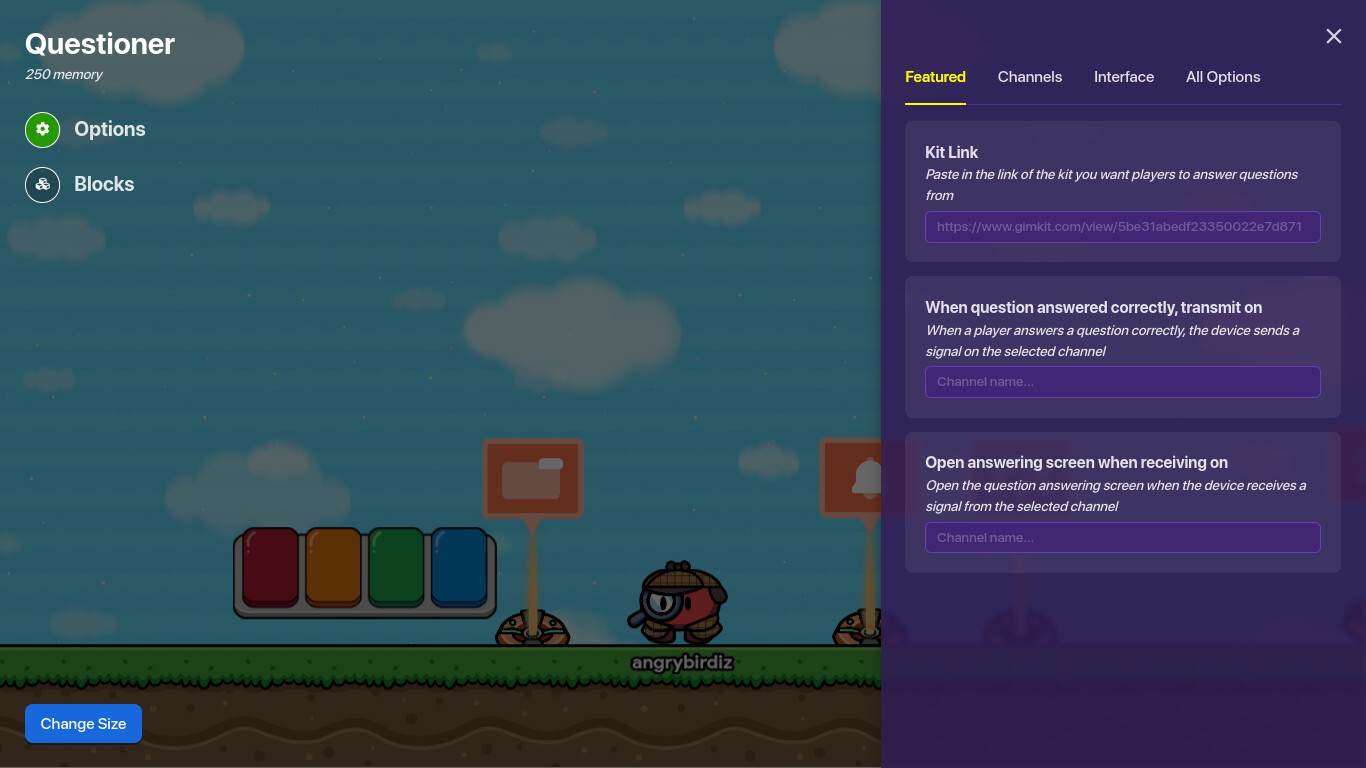
Devices make action happen. Start with Spawn Pad. Players appear there. Add Questioner for quizzes. Link your kit. Use Button for doors. Wire them together.
| Device | What It Does |
|---|---|
| Spawn Pad | Where players start |
| Questioner | Asks quiz questions |
| Button | Press to trigger |
| Barrier | Block paths, deactivate |
| Trigger | Step on to start |
| Text | Show messages |
| Teleporter | Move players |
| Item Granter | Give power-ups |
| Sentry | Shoots enemies |
| Flag | Capture for points |
| Lifecycle | Starts game events |
| Vending Machine | Trade items |
Connect with Wires
Wires link devices. Click Add Wires. Drag from output to input. Button press opens door. Channels name signals. Six per device max. Test often.
Set Backgrounds Easy
Change look in Map Options. Pick terrain for floor. Use barriers for sky. Tint colors deep. Layers add depth. See full guide: How to Change the Background in Gimkit Creative.
Stack Layers Right
Layers control front back. Use tab top left. Arrow keys move up down. Props behind terrain. Players always front. Fixes overlaps quick.
Tune Options Menu
Gear icon opens magic. Map Options set teams, health, score. Editing Options zoom camera, snap grid. Hide zones for clean. Memory bar watches lag.
Test Your Game Now
Hit Start Game bottom right. Play as player. Fix bugs fast. Invite friends with code. Showcase link shares temp.
Simple Top-Down Tag Game
Paint grass terrain. Add spawn pads. Place tag zones. Wire to team switch. Barriers make hide spots. Props like bushes. Questioners at bases. Teams chase fun.

Easy Platformer Jump Fest
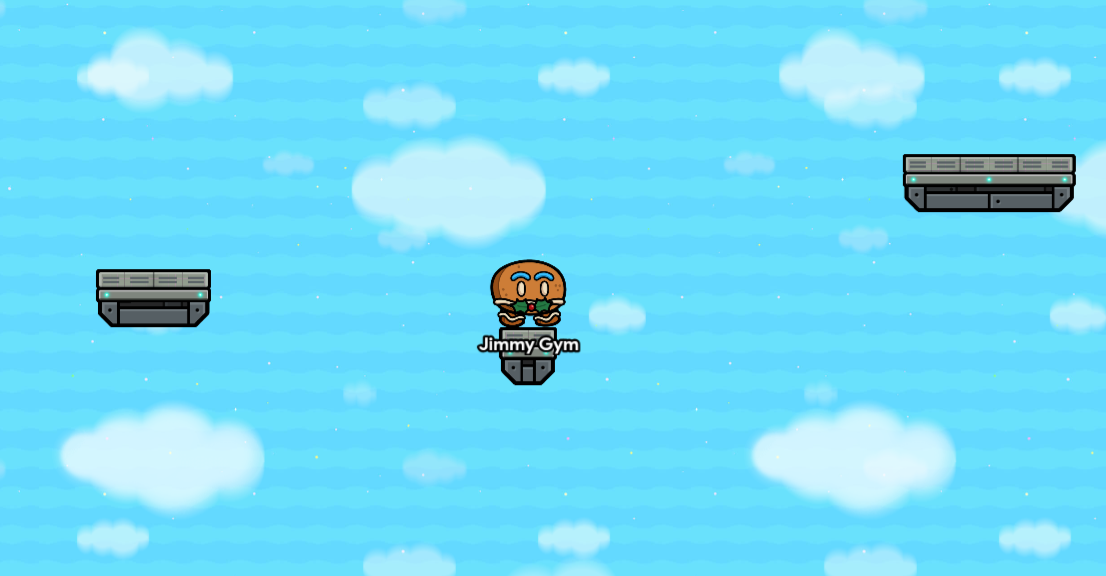
Pick Platformer mode. Build platforms with terrain. Add checkpoints. Questioner jumps need answers. Spikes from lasers. Coins as items. End with flag.
Publish and Share Maps
Options tab makes showcase link. Expires in seven days. Publish to Discovery for all. Host live with code. Creative skips homework assign. Use kits for that.
Pro Tips for Great Games
Plan idea first. Sketch map rough. Build core mechanic. Add decor last. Keep memory low. Test phones too. Match theme to quiz. Forum helps stuck spots. For more, see Gimkit Fun Learning Game Guide.
Fix Common Beginner Mistakes
No spawn? Players lost. Add pads. Wires wrong? Signals miss. Check channels. Empty map? Props fill it. Lag? Cut devices. Layers mess? Stack back first. Erase careful.
More Game Ideas to Try
Battle royale shrinks zone. Tycoon builds bases. Hide seek dark rooms. Race with teleporters. Co-op boss fights. Mix modes smart.
Share and Get Better
Post on forum. Get feedback fast. Play others maps. Remix favorites. Update old ones. Kids love new worlds. Scores climb high.
FAQs
1. Do I need code for Creative?
No. Drag drop builds all.
2. Top-Down or Platformer first?
Top-Down easier for new builders.
3. How many devices fit?
Watch memory bar. Lists help plan.
4. Add quizzes to Creative?
Yes. Questioner links kits.
5. Assign Creative as homework?
No. Use showcase or host live.
6. Props block players?
Turn collision off.
7. Wires max connections?
Six per device.
8. Find more help?
Forum guides and docs.
Conclusion
Making games on Gimkit sparks joy. Kits start simple. Creative dreams big. Terrains, props, devices build worlds. Test, share, improve. Kids learn happy. Try one today. More tips in Gimkit Fun Learning Game Guide.