

A Fun Way to Make Games Look Great
Gimkit Creative lets teachers and students build cool games. They change backgrounds to match themes. A good background makes games exciting. It helps players focus and learn. Creators pick terrains or build custom looks. This guide shows easy steps. Everyone can follow along. Backgrounds set the mood for quizzes and adventures.
What is Gimkit Creative?
Gimkit Creative is a tool in Gimkit. It acts like a big sandbox. Users make 2D games with quizzes. They build platformers or top-down maps. Players jump, run, and answer questions. The tool has devices, props, and terrains. Backgrounds fill the space behind action. Default ones work fine. Custom ones shine bright. Many use it for class fun.
Why Creators Change Backgrounds
Backgrounds make games pop. They fit themes like space or caves. Players feel immersed. Learning sticks better with fun views. Plain grass bores kids. Dark scraps thrill for sci-fi. Custom looks save time too. No need for many tiles. It cuts memory use. Games load fast. Everyone enjoys smooth play.
Quick Start with Basic Background Change
Step One: Open Your Game Map
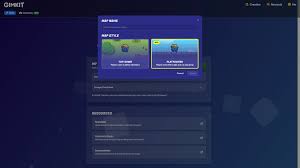
Creators start a new map or edit one. They log into Gimkit. Then pick Creative mode. The screen shows tools on left. Map area sits in center. Default grass covers ground. This sets the stage right.
Step Two: Find the Options Menu
A gear icon sits top right. Creators click it. Options drop down fast. Map settings hide inside. This menu holds key choices. Background waits there too.
Step Three: Enter Map Options
Inside options, Map Options glows first. Creators select it. A new panel opens. Background selector tops the list. Many terrains show up. Pick one that fits.
Step Four: Pick Your Terrain
Scroll through choices. Grass works for forests. Dark Scraps suits junk worlds. Click to set it. The map updates live. No tiles needed now.
Step Five: Save and Test
Hit save button. Play test mode. Background fills whole floor. It saves memory big time. Games run smooth for all.
Full List of Terrain Backgrounds
Gimkit offers many terrains for backgrounds. Creators set one in Map Options. It covers the base fast. Here is the table of all options.
| Terrain Name | Best For |
|---|---|
| Asphalt Road | City streets |
| Boardwalk | Beach paths |
| Castle Tile (green) | Forest castles |
| Castle Tile (Purple) | Magic lands |
| Castle Tile (red) | Fire kingdoms |
| Cinema Carpet | Movie nights |
| Concrete | Modern builds |
| Cracked Oak | Old woods |
| Dark Scraps | Sci-fi junk |
| Dirt | Deserts |
| Disco Floor | Party modes |
| Dry Grass | Barren fields |
| Dungeon (blue) | Ice caves |
| Dungeon (Gray) | Stone dungeons |
| Dungeon (Green) | Mossy ruins |
| Dungeon (Purple) | Mystic holes |
| Exposed Boardwalk | Worn beaches |
| Frozen Lake | Winter lands |
| Grass | Green meadows |
| Gym Floor | Sports arenas |
| Lab Floor (blue) | Science labs |
| Lab Floor (green) | Bio rooms |
| Lab Floor (magenta) | Tech glows |
| Lab Floor (white) | Clean labs |
| Light Scraps | Bright scrap |
| Marble Stone (dark) | Fancy halls |
| Marble Stone (light) | Bright palaces |
| Metallic (dark) | Metal worlds |
| Metallic (light) | Shiny tech |
| Plastic (blue) | Toy lands |
| Plastic (green) | Eco plays |
| Plastic (purple) | Neon fun |
| Plastic (red) | Danger zones |
| Purple Grass | Alien fields |
| Purple Sand | Mystic beaches |
| Sand | Deserts |
| Snow | Cold peaks |
| Snowy Grass | Winter meadows |
| Space/Space (moving) | Stars and cosmos |
| Space Rock | Asteroid fields |
| Spaceship Catwalk (grills) | Ship decks |
| Spaceship Catwalk (lined) | Walkways |
| Spaceship Corridor | Hallways |
| Spaceship Corridor (white) | Bright halls |
| Spaceship Interior | Ship rooms |
| Speckled Gray | Rocky grounds |
| Stone (Brown) | Earth tones |
| Stone (Dark) | Shadow rocks |
| Stone (Light) | Bright stones |
| Stone Pavement (Dry Grass) | Old paths |
| Stone Pavement (Grass) | Green stones |
| Stone Pavement (Purple Grass) | Magic paths |
| Water | Lakes |
| Water (Dark blue) | Deep seas |
| Water (Gray) | Stormy waves |
| Water (Pink) | Fun pools |
| Water (Purple) | Mystic waters |
| Water (White) | Foamy surf |
This list helps pick fast. For more Gimkit tips, see the Gimkit Fun Learning Game Guide.
Building Custom Backgrounds with Barriers
Why Use Barriers for Customs
Barriers make true custom looks. Terrains fill floors. Barriers cover skies or walls. They block nothing if set right. Creators tint colors easy. Layers add depth. No uploads needed. All from tools inside.
Basic Barrier Setup
Grab barrier from devices. Drag to map back. Turn collision off. Set layer to behind. Tint color like dark blue. Stretch wide and tall. It hides default sky.
Adjust Transparency for Mood
Set alpha low for night. Zero point nine works great. Full one blocks all. Layer two for glows. Front one at zero point three. Back one full dark. Depth comes alive.
Combine Barriers for Gradients
Stack colors. Dark purple base. Lighter top fade. Players see sunset. Or black to gray cave. Simple stacks wow crowds.
Custom Backgrounds Shine in Platformers
Platformer Default and Fixes
Platformers show blue sky default. Barriers override it. Place behind player layer. Stretch across screen. Repeat for long levels. Props add stars or clouds.
Create Depth with Layers
Far layer: Dark barrier. Mid: Small props tinted dark. Near: Bigger brighter ones. Player moves. Back stays still. It feels real.
Cave Theme Step by Step
Start dark brown barrier. RGB fifty-five, forty-four, seventeen. Full opaque. Collision off. Behind layer. Add alien plants. Nine small vines. Tint green. Layer above back. Galaxy fish glow. Purple seeds sparkle. Rocks blue for gems. Ceiling shards shine. Extra light barrier on top. Cave glows magic.
Forest Theme Easy Build
Trees line back. Fourteen green ones. Bushes fill gaps. Thirteen work well. Animals roam: Tiger prowls. Parrots fly. Blue bird perches. Tint leaves deep. Layer mid props. Forest breathes life.
Underwater World Setup
Two barriers blue. Back full opaque. Front half see-through. Fish swim mid layer. Coral clusters bottom. Bubbles rise optional. Ocean feels deep.
Night Sky Quick Make
Black or purple barrier. Zero point nine alpha. White circle moon. Stars from small props. Shine bright. Players dream under it.
Space Theme with Motion Hint
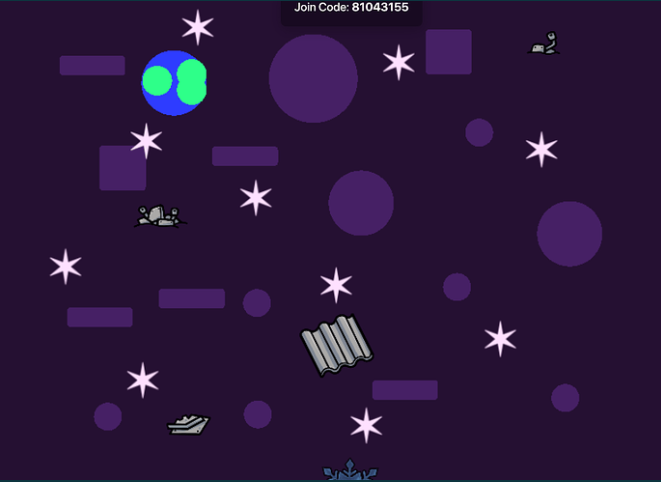
Dark barrier base. Stars props scattered. Planet from tinted circle. Moving space terrain pairs well. Barriers hold stars fixed. Epic voyages start.
Decorate Backgrounds with Props
Pick Right Props
Props like trees, rocks, fish. Tint to match. Small for far. Big for near. No collision needed.
Layer Props for Parallax
Back props tiny dark. Mid medium tint. Front large bright. Player jumps. Layers shift slow. Depth fools eyes.
Repeating Patterns Save Time
Copy paste props. Stretch map long. Seamless loops work. Forest goes forever.
Dynamic Background Changes
Use Zones to Switch
Zone device triggers. Player enters. Wire to barrier. Activate new one. Deactivate old. Scenes shift mid game.
Color Cycling Fun
Timer device pulses. Change barrier hue. Rainbow floors disco. Or fade night to day.
Music Pairs with Views
Map Options music. Spooky track dark cave. Funk disco floor. Backgrounds sing.
Tips for Pro Backgrounds
Keep simple. No clutter distracts. Match quiz theme. Space for stars facts. Jungle biology. Test on devices. Mobile needs clear. Save often. Layers stack right.
For full game ideas, check the Gimkit Fun Learning Game Guide.
Common Problems and Fixes
Barrier Blocks Player
Collision on? Turn off. Layer wrong? Set behind.
No Depth Shows
Check layers. Back to front order. Tints too bright? Darken far ones.
Memory Lag
Too many props? Use terrain base. Fewer big barriers.
Platformer Sky Peeks
Barrier not full size? Stretch edges. Multiple for scrolls.
Best Practices for Readers
Plan theme first. Sketch on paper. Build layers back first. Test play often. Share on forums. Get feedback. Iterate fast. Kids love immersive worlds. Teachers see better scores.
FAQs
1. Can creators upload own images?
No. Use terrains, barriers, props. Customs from inside tools.
2. What layer for backgrounds?
Behind or below player. Keeps action front.
3. How many terrains exist?
Over fifty. List above shows all.
4. Barriers work in top-down?
Yes. Same rules apply.
5. Change background mid-game?
Yes. Zones and wires switch them.
6. Props collide in back?
Turn collision off always.
7. Best for beginners?
Start Map Options terrain. Add one barrier.
8. Where find more ideas?
Gimkit Creative forum. Search themes.
Conclusion
Changing backgrounds transforms Gimkit Creative maps. Basic terrains start easy. Customs with barriers dazzle. Platformers gain depth. Players learn with joy. Try today. Share your creations. Fun awaits everyone. For more guides, visit the Gimkit Fun Learning Game Guide.